
Virtual Extension Configurations
Virtual extensions in your PBX are short, internal routing numbers not tied to any physical hardware.
They are primarily used to seamlessly route calls to queues or call groups. They can also be used for departmental voicemail boxes, or act as shortcuts for system features like calling into conference rooms.
Your PBX initially comes with 5 Virtual extensions you can utilize. Check out the video tutorial or view the step by step instructions below:
From the Extension tab in NEWTCF, clicking on the Pencil Edit Icon at the end of an unused virtual extension, will take you into its settings window for set up.

In the extension settings tab, simply name the extension that aligns with the purpose for it. If you are using this for a general or shared voicemail box, you can complete your voicemail settings and recordings here. Click Save when done.
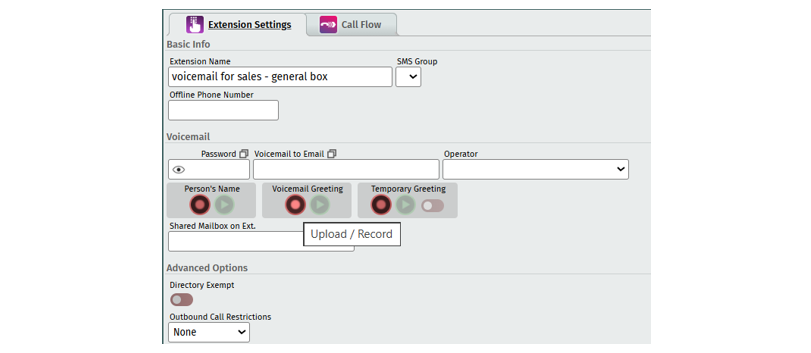
Once done, move to the Call Flow tab, to program what to do with the call, once it hits the extension. There are many options to choose from:
Extension: Select another extension to try calling, before going to the voicemail on this extension.
Dial: Dial an external phone number before next steps. Even if it dials an external number such as your cell phone, if the call isn't answered, it will follow your next steps in this call flow.
Voicemail: Send the call directly to a voicemail box.
Follow: Go to another extension or an auto attendant right away. The call will exit this extension and follow the call flow you are sending it to.
Call Queue: The call will enter the queue you choose to send it to. Note that for ACD Queues, if no one is available to take calls in the queue, once the queue time out occurs, the call will come back to this extension and follow the next steps (such as go to voicemail).
Once your virtual extension is set up, you can point calls to it from your automated attendant or another extension or phone number. Feel free to visit our tutorials related to Telephone Number Call Flows or Auto Attendant set up.
Note: If you have purchased our Automatic Call Distribution program for your PBX, you will be given additional virtual extensions specifically for ACD Queue call routing. Set up Instructions can be found here:
ACD ADMIN - Call Flow Set Up for QUEUES
Click Below for Additional Articles related to Extension Set Up Features:
Related Articles
Telephone Number Main Settings
How to Update Telephone Settings: For NEWTCF Administrators
Telephone Number Auto Attendant Set Up
How to set up your Auto Attendant: For NEWTCF Administrators
Extension Main Settings
How to Update Extension Setting : For NEWTCF Administrators
Extension Call Flow Handling Set Up
How to set up Extension Call Flows: For NEWTCF Administrators
Extension Detail Settings
How to Update Details within the Extension Screen
Text to Speech Recording Feature
Recording your AA menu, VM or ACD announcements
Telephone Number - Detail TN Settings
How to update Ring Tones and DISA settings