
Extension Hardware Settings
The Hardware Settings are dynamic and will appear differently depending on the hardware attached to this SIP extension.
Grandstream Phones - Programmable Keys
Programmable Keys can be used to custom program the line keys on the users Grandstream phones for them, rather than the user needing to manually input via the phone’s menu options. In the below example:
On the first screen of the phone using the 1st line key – The user wants this to be a speed dial.
They want the second key on the first screen to show Cosmin’s extension when it is busy or available using the busy lamp field (BLF) feature.
They want the 3rd Key on the first screen to be a line key so that the user can pick up another call on that line.

Instructions:
In the Extension Tab of NEWTCF, click on the Pencil Edit Icon at the end of the targeted extension.
Navigate to the hardware settings tab.
Select the available options based on the Keys and Functions you would like.
Expansion Modules - Additionally, you can add programmable keys specifically to expansion modules that may be connected. First select the Expansion Module at the top, then select the Device EM key position to program.
Save your work and then save and update the PBX to publish.
Users will need to reboot their phones by:
Unplugging the Ethernet cable (which often provides power via PoE) and the power adapter (if applicable).
Wait 10 to 15 seconds.
Plug the cables back in and allow the phone to boot up.
Grandstream Door Phone
Click here for the full Grandstream Door Phone Installation and Configuration.
Set the Door Code (the DTMF release code — “6” in this example). This is the number that your employees will enter on their phones + the Pound Key, to open the door. Add the Call Group - the list of extensions dialed when the visitor presses the call button. Use Add + to include more phones.

ALGO 8180 Device
Ideal for installation with NEWT Managed PBX's on site. The 8180 SIP Audio Alerter is a SIP compliant PoE network audio device for loud ring and voice paging applications using dual endpoints. When registered with a SIP server, one endpoint will play an audio file from internal memory upon ring detection. The second endpoint will auto-answer for voice paging. Equipped with a high efficiency integrated amplifier and tuned high quality loud speaker, the 8180 is typically eight times louder than a telephone speaker and ideal for noisy environments such as restaurants and workshops.
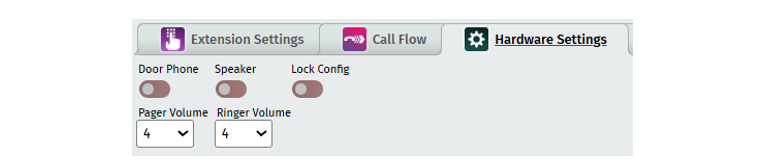
Settings include Door Phone with Volume settings and Speaker with Volume settings and Door Lock configuration that can be turned on.
Click Below for Additional Articles related to Extension Set Up Features:
Related Articles
Telephone Number Main Settings
How to Update Telephone Settings: For NEWTCF Administrators
Telephone Number Auto Attendant Set Up
How to set up your Auto Attendant: For NEWTCF Administrators
Extension Main Settings
How to Update Extension Setting : For NEWTCF Administrators
Extension Call Flow Handling Set Up
How to set up Extension Call Flows: For NEWTCF Administrators
Extension Detail Settings
How to Update Details within the Extension Screen
Text to Speech Recording Feature
Recording your AA menu, VM or ACD announcements
Telephone Number - Detail TN Settings
How to update Ring Tones and DISA settings