
GDS3705 Door Phone Set Up
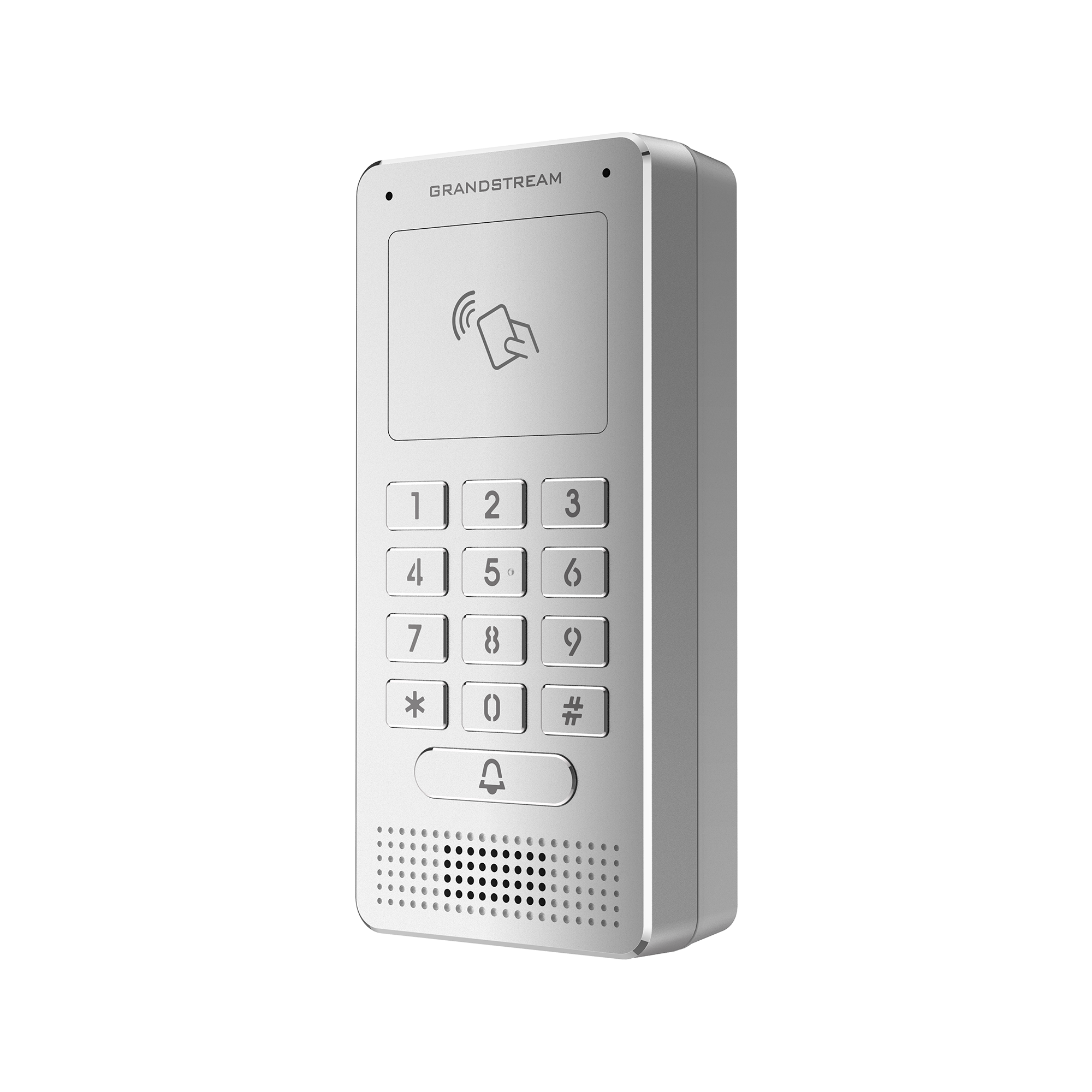 | The GDS3705 is sold and supported by NEWT as a door phone with a specific, NEWT-managed call workflow. It is not sold, provisioned, or supported as an access-control platform. PIN entry, RFID/card/fob access, and similar access-control functions are out of scope (see “RFID & Access Control”). |
|---|
Supported Use Case
The supported NEWT deployment of the GDS3705 operates as a door phone with a specific, intentional workflow. This is the only configuration NEWT provisions and supports.
1. A visitor presses the doorbell (call) button on the GDS3705.
2. The button rings the configured destination — a dedicated extension (which can also ring a mobile cell phone on any carrier or the NEWT mobile app, a receptionist), or a ring group so that all phones in the building ring.
3. Whoever answers presses the Door Code followed by # (e.g., 6 #) to release the door (a short delay occurs before the door opens).
A second supported path uses the auto attendant: the visitor presses the doorbell, the call is answered by the auto attendant, the auto attendant asks which extension the visitor wishes to reach, and the visitor then enters that extension on the keypad. The keypad is used after the doorbell/auto-attendant flow — not to dial people directly.
What is not supported:
❌ Using the keypad to directly dial individual extensions and then pressing the Door Code to open the door (without first going through the doorbell / auto-attendant flow).
❌ PIN entry, RFID / card / fob access, and other access-control functions as part of the NEWT-managed configuration.
❌ Operating the unit as a full access-control system.
If a customer requires access-control features (PIN, card/fob, RFID), the company that installs the unit must support the entire device, and NEWT’s handoff is as a third-party SIP device. In that scenario NEWT Support does not support the unit’s features, because it is no longer a NEWT-managed door phone.
Extension & Door Code PBX Configuration
Hardware settings are modified in the Extension Details screen, which is available to NEWTCF Admin users. In this example deployment, two extensions work together:
• 510 – Door Phone: the physical Grandstream GDS37xx SIP device. The Door Code and Call Group are configured here, under Hardware Settings.
• 505 – Door Phone Call Flow: a virtual extension used to manage the door phone’s call flow and voicemail handling.

In the Extension tab, click the pencil icon at the end of the line item for the Door Phone (ex. 510) to open the Extension Details screen. You will see tabs that require configuration:
Extension Settings tab: Set the Extension Name for the door phone.

Call Flow tab: Define which extension(s) ring when the doorbell is pressed and what happens afterward. In this example the default sequence rings an extension for a set number of rings and then hangs up, while the alternate sequence provides additional routing (rings the group of phones as per below hardware settings - Call Group).

Hardware Settings tab: Set the Door Code (the DTMF release code — “6” in this example). This is the number that your employees will enter on their phones + the Pound Key, to open the door. Add the Call Group - the list of extensions dialed when the visitor presses the call button. Use Add + to include more phones.

RFID & Access Control — Support Boundaries
RFID capability is built into the GDS3705 hardware, but access-control installation and configuration require a certified security integrator. Fibernetics does not provide installation or support for RFID implementations.
If a customer decides to use RFID, the unit is treated as a third-party SIP device from that point forward. The supported NEWT deployment of the GDS3705 is not intended to operate as a full access-control system; it is sold and supported only as a door phone running the workflow described in Section 3.
PIN entry, card/fob access, and other access-control functions are not supported as part of the NEWT-managed configuration. If a customer wants these features, the company that installs the unit must support the entire device, and NEWT’s handoff will be as a third-party SIP device.
Why this boundary exists: The limitation is not that the device cannot technically do more — it is that NEWT does not sell, provision, install, train on, or support it as an access-control platform. NEWT provisioning intentionally manages the configuration so the device stays supportable and consistent. If the device is removed from provisioning and additional features are configured manually through the GUI, it becomes unmanaged, inconsistent, and unsupported from an operational standpoint. |
NEWT Support Summary
Item | Supported by NEWT? | Notes |
Doorbell call to extension / ring group / mobile / NEWT app | Yes | Core supported workflow (Section 3). |
Door release via Door Code + # (e.g., 6 #) | Yes | Pressed by the person who answers the call. |
Auto-attendant flow (visitor enters extension after doorbell) | Yes | Keypad used after the doorbell/AA flow. |
Call Group / Multiple Answering configuration | Yes | Set in Hardware Settings on the door phone extension. |
Direct keypad dialing of individual extensions | No | Not part of the NEWT-managed workflow. |
PIN entry / card / fob access control | No | Requires a certified security integrator. |
RFID access control | No | Device becomes a third-party SIP device; installer supports the full unit. |
Operating as a full access-control system | No | Out of scope for the NEWT-managed deployment. |
For anything outside the supported door-phone workflow, the installing/security company owns support for the unit, and NEWT treats the device as third-party SIP.
Related Articles
Client Router / Firewall Settings
Customer Network Guidelines for 3rd party Internet Access (ALT ACCESS)
Jabra Evolve 65 Bluetooth Headset Setup
How to connect your Evolve 65 with your NEWT GXP2170
Poly Voyager B5200 Bluetooth Headset Setup
How to connect your B5200 with your NEWT GXP2170
GXP2170 Headset Compatibility Information
Learn about recommended headsets for your NEWT GXP2170
NEWT Nitro FTTP - BYOD Option
Installation Information for FTTP - BYOD