
Extension Detail Settings
From the Extension tab in NEWTCF, clicking on the Pencil Edit Icon at the end of the targeted extension will take you into its settings window for further management.
Basic Info Section
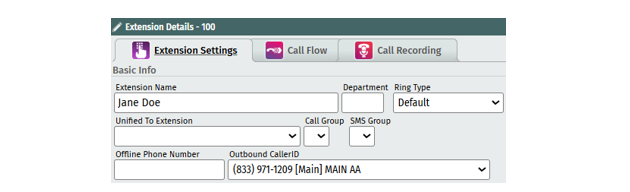
Ext . Name - The extension name of the person you have assigned the extension to. You can change the name on this extension here.
Department - Place extensions into departments to pull call reports by department. These departments are numerical (i.e.: Accounting Dept could be 1 and Sales Dept 2 etc.). Simply add your own pre-determined department number to the department field of the extension.
Ring Type - Use the drop-down list to choose a distinct ring for the chosen phone number. The ring types correspond to the standard ring types available on the phone.
Unified to Extension – This field will indicate the main extension this is unified to.
Call Grp - You can assign an extension to a Call Group to receive incoming calls. This field will indicate which group the extension is assigned to. An extension can only be included in one group at a time. You can add access for group call recording below. Further set up will be required for calls to flow to the group (see Call Group set up instructions).
SMS Group (Share Texting) – If you have a team that you want to be able manage the texts from one phone number, SMS/MMS can be enabled on their extensions by NEWT with a specific group texting number assigned. Once set up by NEWT, this field allows you to assign this extension to the group to manage texts. This is only available for NEWT Mobile or Desktop devices.
Offline Phone Number - The NEWT PBX is structured to allow for automatic disaster recovery, by having the ability to forward calls if ANY local condition (i.e.: power failure) occurs. This will forward calls that are directly routed to the extension, to the Offline Number entered. You can add or change this.
Outbound Caller ID – This is the phone number being displayed to callers, for this extension. You can change this by selecting a different number already listed in your PBX. However, notice this is the number used for 911 address identification. Therefore, the number chosen to be displayed, should be related to the address where this user is located (see E911 section for further details).
Voicemail Section
Voicemail Password - Add or reset passwords for extensions by entering a new password and saving the change. Use the Eye Icon to view the password.
Voicemail to Email - Enter the email address you would like the voicemail recording to go to. Note that if Voicemail to Text transcription has been purchased, customers will also receive a transcription in their email along with the audio file, with a subject line relevant to the call information.
Operator - Select the Extension you would like calls to go to if a caller “zeros out” when they get to the voicemail.
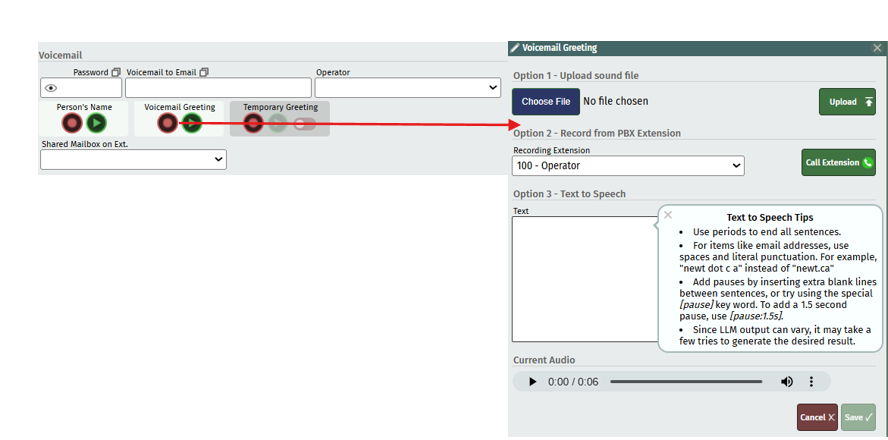
Recording Name and Greetings - clicking on the red circle takes you to options to record your name and voicemail greetings. Note that recording your name is great for the Directory Listing feature to work well. The following options are available to record:
Upload a sound File - If you have a prerecorded mp3 or wav file. Simply click on the Choose file button and select your file from your computer to upload.
Record from an Extension - Select an extension you have access to, to answer the call. Click on the Call Extension button, answer the phone and record your greeting. Follow the prompts to save. Then click on the save button in the extension screen to publish.
Use Text to Speech to Record - Simply type in your text, choose the voice and language to use, then choose professional or casual tone and then hit the Generate button. You can listen to the audio it generates once rendered. You can make corrections to text or change the voice options and hit regenerate. Once you are satisfied with the recording, click the save button to save the script and the recording. This feature is great to use for general or shared mailboxes!
TIPS for Text to Speech:
Use a period to end a sentence.
For items like email addresses, use spaces and literal punctuation (i.e., “newt.ca”, instead of “newt dot c a”).
For pauses, try [pause:1.5s] or hitting enter to leave some blank lines in between sentences.
We understand that LLM’s are not always perfect. It tries its best, but that doesn’t mean you won’t find the occasional error in the recording rendered. You may need to regenerate a couple of times for best results.
Ensure to save and update the main screen for publishing.
Groups Section
Group Recording Access – If an extension is assigned to a call group (see above “call group” selection), you can toggle on group recording access to allow this extension to listen to recordings on extensions from other members in their group. Click here for Full Call Group set up instructions.
Pick Up Group – This feature is different than a Call Group, in that not everyone’s extension will ring and is not dependent on a call flow. Instead, if you are within a team and want to be able to pick up calls that are ringing on your teammates phone (such as if their phone is ringing and they are away from there desk), a pickup group gives their teammates the ability to take the call. You can assign a team of people to the same pickup group number. This allows the teammate to take the call by dialing *4 and entering the extension # of where the call is currently ringing to.
Pick Up Group Access – If you have set up more than one pickup group (i.e. for several teams) choose which additional pickup teams this person can pick up calls for, by toggling on other pickup group numbers. If someone on another team is away from their desk and across the room when their phone rings, you can quickly take the call by dialing *4 and entering the extension # of where the call is currently ringing to.

Advanced Options Section
Directory Exempt - This option allows you to exclude extensions from the company directory. For areas in the location that may have a phone (i.e.: kitchen, boardroom) that you have named as such would not benefit from being included in the company directory. To remove these from the company directory search, simply toggle it off.
Disable Call Waiting - This option will disable call waiting on the extension. In busy call environments, or in situations where one person takes most of the calls, call waiting can be disabled. Any incoming calls while a person is on a call will proceed to the next step in the Dial Sequence.
Outbound Call Restrictions – This option allows you to restrict the type of calls this extension can make.
None – no restrictions (user may call anywhere)
LD Password – requires a Long-Distance Password to dial Long Distance calls (same as voicemail password for the extension)
International – restricts international calling (outside N.A.) for that extension.
All LD – restricts all Long Distance calling for that extension (allows local calling only)
Local and LD – restricts all Local and Long Distance calling for that extension (allows only internal extension to extension dialing)
Device Credentials Section
Some extensions require log in credentials. This section will reveal specific information based on the Device Type assigned to this extension. Click here for full details.
NEWT Desktop: The Username and Password are shown here for user’s log in credentials. When this is set up, you can send the credentials to the user via email. The email will include the URL to download the software + the username and password information.
NEWT Mobile: A QR Code will be sent in the email. Users must first download the app to their mobile device. Once the app is first opened – the log in screen will appear with an option to scan the QR code to log in.
3rd Party SIP Device: This option will show for “3rd party SIP” extensions only. These credentials are giving the user to sign in to 3rd party phones or software. NEWT cannot guarantee or support the functionality of the SIP devices in these cases.
Click Below for Detailed Articles related to Extension Set Up Features:
Related Articles
Telephone Number Main Settings
How to Update Telephone Settings: For NEWTCF Administrators
Telephone Number Auto Attendant Set Up
How to set up your Auto Attendant: For NEWTCF Administrators
Extension Main Settings
How to Update Extension Setting : For NEWTCF Administrators
Extension Call Flow Handling Set Up
How to set up Extension Call Flows: For NEWTCF Administrators
Text to Speech Recording Feature
Recording your AA menu, VM or ACD announcements
Telephone Number - Detail TN Settings
How to update Ring Tones and DISA settings