
Extension Voicemail Settings
From the Extension tab in NEWTCF, clicking on the Pencil Edit Icon at the end of the targeted extension will take you into its settings window for further management. Voicemail Settings can be found in the Extension Settings Tab in this window.
Check out the video tutorial or view the step by step instructions below:

Voicemail Password - Add or reset passwords for extensions by entering a new password and saving the change. Use the Eye Icon to view the password.
Voicemail to Email - Enter the email address you would like the voicemail recording to go to.
Voicemail to Text Transcriptions - Note that if Voicemail to Text transcription has been purchased, this is set up by NEWT and applies to the entire PBX. If the extension has voicemail to email, the user will also receive a transcription along with the audio file, with a subject line relevant to the call information.
Operator - Select the Extension you would like calls to go to if a caller “zeros out” when they get to the voicemail.
Voicemail Recording Name and Greetings - clicking on the red circle takes you to options to record the name and voicemail greetings. Note that recording the user name is great for the Directory Listing feature to work well. The following options are available to record:
Upload a sound File - If you have a prerecorded mp3 or wav file. Simply click on the Choose file button and select your file from your computer to upload.
Record from an Extension - Select an extension you have access to, to answer the call. Click on the Call Extension button, answer the phone and record your greeting. Follow the prompts to save. Then click on the save button in the extension screen to publish.
Use Text to Speech to Record - Simply type in your text, choose the voice and language to use, then choose professional or casual tone and then hit the Generate button. You can listen to the audio it generates once rendered. You can make corrections to text or change the voice options and hit regenerate. Once you are satisfied with the recording, click the save button to save the script and the recording. This feature is great to use for general or shared mailboxes!
TIPS for Text to Speech:
Use a period to end a sentence.
For items like email addresses, use spaces and literal punctuation (i.e., “newt.ca”, instead of “newt dot c a”).
For pauses, try [pause:1.5s] or hitting enter to leave some blank lines in between sentences.
We understand that LLM’s are not always perfect. It tries its best, but that doesn’t mean you won’t find the occasional error in the recording rendered. You may need to regenerate a couple of times for best results.
Ensure to save and update the main screen for publishing.
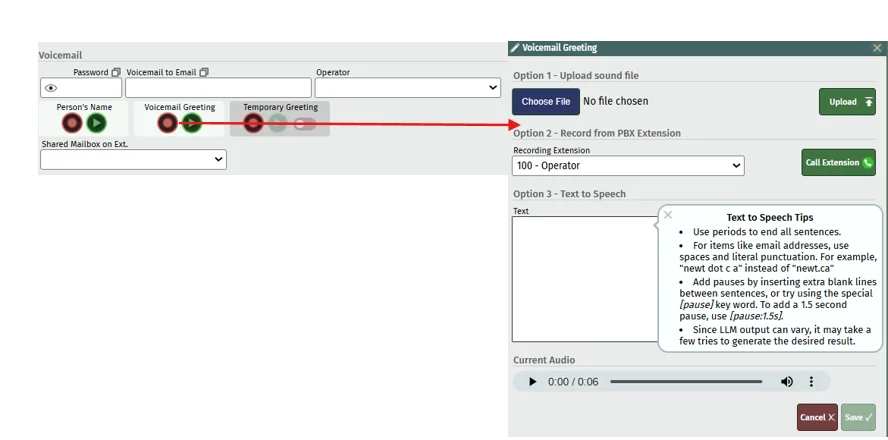
Shared Mailbox on Ext. - If this extension is using a group mailbox, this column indicates which mailbox the extension is pointing to. For set up:
In the Extension listing, first choose the extension where the shared mailbox will sit.
Update the Voicemail Box:
Clicking on the Pencil Icon to enter the edit window of the extension details.
Enter a new password (cannot be the 3 digit extension number!)
Record the name and Voicemail Greeting by clicking on the red circle, record button.
Add the Voicemail to Email being used by the group of users.
Then identify the users’ extensions that will be sharing this voicemailbox and click on the Pencil Icon to enter the edit window of their extension details.
In the shared mailbox field, select the identified shared mailbox from the drop-down menu
Click Save.
Repeat this process for each extension that will be sharing the identified mailbox.
Give all the users the password for the shared mailbox (set up above).
Related Articles
Telephone Number Main Settings
How to Update Telephone Settings: For NEWTCF Administrators
Telephone Number Auto Attendant Set Up
How to set up your Auto Attendant: For NEWTCF Administrators
Extension Main Settings
How to Update Extension Setting : For NEWTCF Administrators
Extension Call Flow Handling Set Up
How to set up Extension Call Flows: For NEWTCF Administrators
Extension Detail Settings
How to Update Details within the Extension Screen
Text to Speech Recording Feature
Recording your AA menu, VM or ACD announcements
Telephone Number - Detail TN Settings
How to update Ring Tones and DISA settings