
Text to Speech Recording Feature
Our NEWT BUSINESS PHONE PBX configuration platform now includes the ability to update your Auto Attendant Menu, Holiday Greetings and Voicemail Boxes using text-to-speech generated professional voices. Additionally, if you have purchased our ACD product, this feature is also available for Announcement recordings.
Benefits
Now you can quickly create or change your recordings, without the need to wait for professional recordings to be scripted, sourced and delivered.
Dread the repeated attempts at recordings yourself no more! Now you can create clean recordings without background noises and can easily correct mistakes.
Now anyone can! Create long-term consistency in the voice recorded sounds, no matter who is maintaining your PBX. Choose from our menu of voices:
Male or Female
Professional or Casual Tone
English or French (with proper French-Canadian pronunciations!)
Once recorded and saved, the transcription remains seen for review or update to easily make changes.
How Does it Work
Recording Auto Attendant Menu's with text to speech
When accessing a Telephone Number in the NEWT Configuration environment, navigate to the Call Flow tab for the automated attendant.
When you click on the red button to record the Automated Attendant Menu Instructions, the following will display:
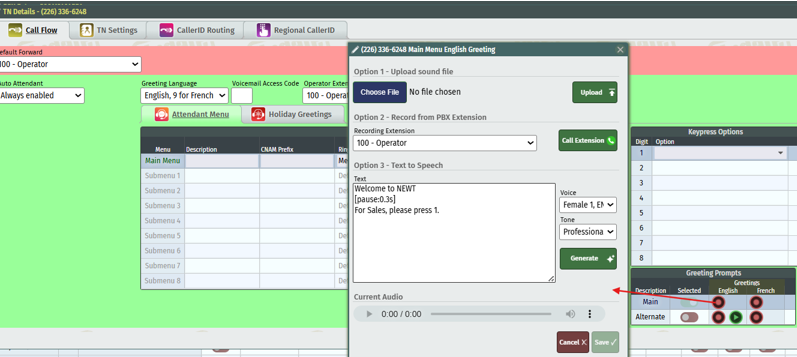
Simply type in your text (see below tips for writing), choose the voice and language to use, then choose professional or casual tone and then hit the Generate button. You can listen to the audio it generates once rendered. You can make corrections to text or change the voice options and hit regenerate.
Once you are satisfied with the recording, click the save button to save the script and the recording. Ensure you save and update the main screen for publishing.
Recording Voicemail Greetings with Text to Speech
When accessing an extension in the NEWT Configuration environment, navigate to the Voicemail section.
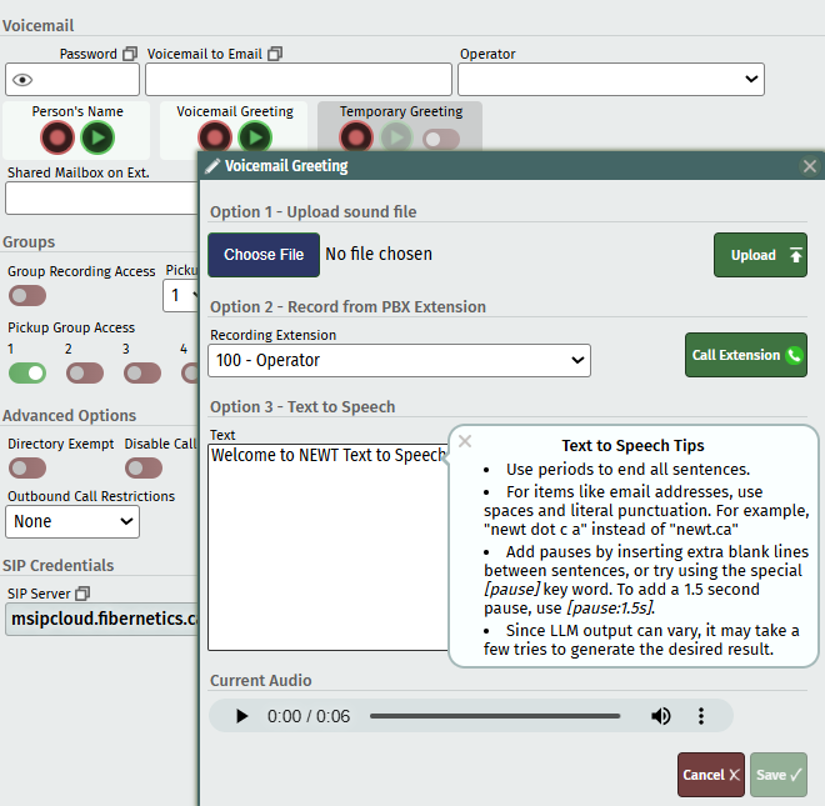
When you click on the red button to record (person’s name, voicemail greeting or temporary greeting) the options available to record, now includes Text to Speech.
Simply type in your text, choose the voice and language to use, then choose professional or casual tone and then hit the Generate button. You can listen to the audio it generates once rendered. You can make corrections to text or change the voice options and hit regenerate.
Once you are satisfied with the recording, click the save button to save the script and the recording. If you are an administrator, ensure to save and update the main screen for publishing.
See Tips below for best results when using LLM generating tools:
Recording ACD Announcements with Text to Speech
If you are an administrator of your ACD, you will see a Settings Tab in the configuration interface.
Once in Settings, navigate to the Announcements tab. Here you can click on the red button to record, and the following screen will appear:
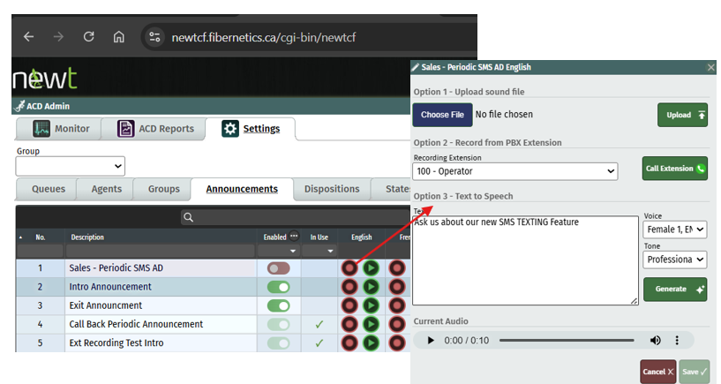
Simply type in your text, choose the voice and language to use, then choose professional or casual tone and then hit the Generate button. You can listen to the audio it generates once rendered. You can make corrections to text or change the voice options and hit regenerate.
Once you are satisfied with the recording, click the save button to save the script and the recording. Ensure you save and update the main screen for publishing.
TIPS when using TEXT TO SPEECH products:
Use a period to end a sentence.
For items like email addresses, use spaces and literal punctuation (i.e., “newt.ca”, instead of “newt dot c a”).
For pauses, try [pause:1.5s] or hitting enter to leave some blank lines in between sentences.
We understand that LLM’s are not always perfect. It tries its best, but that doesn’t mean you won’t find the occasional error in the recording rendered. You may need to regenerate a couple of times for best results.
Related Articles
Telephone Number Main Settings
How to Update Telephone Settings: For NEWTCF Administrators
Telephone Number Auto Attendant Set Up
How to set up your Auto Attendant: For NEWTCF Administrators
Extension Main Settings
How to Update Extension Setting : For NEWTCF Administrators
Extension Call Flow Handling Set Up
How to set up Extension Call Flows: For NEWTCF Administrators
Extension Detail Settings
How to Update Details within the Extension Screen
Telephone Number - Detail TN Settings
How to update Ring Tones and DISA settings