
How to Manage your own Extension Settings
Your extension on the NEWT PBX can be accessed to make adjustments to your extension settings and access information.
Your administrator will need to provide access for you to the following Extension Features at their discretion:
Extension Settings
Call Flow
Call Recordings
Extension Log In Instructions
Once credentials have been set up, you will receive an email from do-not-reply@fibernetics.ca.
The email will contain a link to the NEWT Configuration Facility web portal, your username and a password link.
Click on the Password Link and immediately copy the password that is revealed. You will need to capture and save the password that is revealed in the password link for future log in access!
Then click on the link to the portal provided in the main email.
Enter the username provided in the email
Enter the Password you just copied
You will then be prompted to enter your 2FA code. If your administrator added an texting number when setting you up, you will receive your 2FA via text. If not, you will receive the 2FA by email.
Extension Settings
Your extension settings will have been completed during the initial set up by NEWT or additionally by your administrator. However, there are some settings you may want to update:
Ring Type - This field will appear for Poly or Grandstream Phone users. Use the drop-down list to choose a distinct ring for the phone. The ring types correspond to the standard ring types available on your phone.
Offline Phone Number - The NEWT PBX is designed to allow for automatic disaster recovery, by having the ability to forward calls if ANY local condition (i.e.: power failure or downed internet) occurs. This will forward calls that are directly routed to your extension, to the Offline Number entered.
Voicemail Password - Your initial password will be your extension number. Reset your password by entering a new password and saving your change. Use the Eye Icon to view the password. *Your new password cannot be your 3 digit extension number*
Voicemail to Email - Enter the email address you would like the voicemail recording to go to. Note that if Voicemail to Text transcription has been purchased, you will also receive a transcription along with the audio file, with a subject line relevant to the call information.
Operator - Select the Extension you would like calls to go to if a caller hits 0 (zero out) while in your voicemail box.
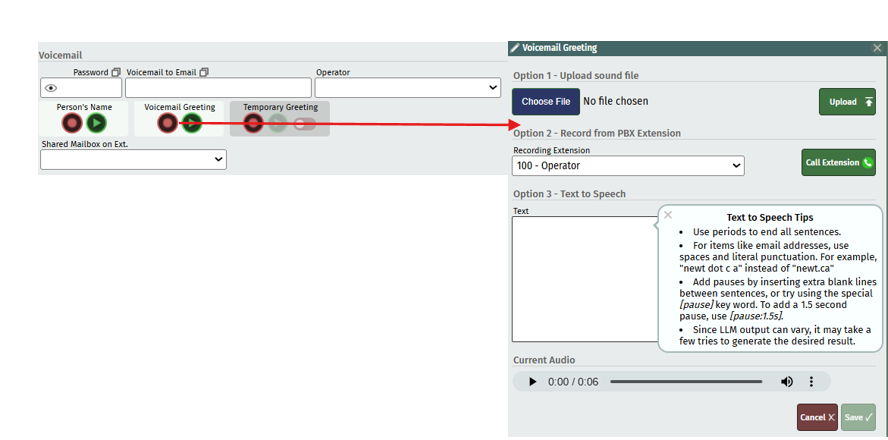
Voicemail Greeting - typically you would record your greeting upon accessing your voicemail from your phone (using the voicemail key or dial *98). However, you can also record from here. Clicking on the red circle takes you to options to record your name and voicemail greetings. Note that recording your name is great for the Directory Listing feature to work well. The following options are available to record:
Upload a sound File - If you have a prerecorded mp3 or wav file. Simply click on the Choose file button and select your file from your computer to upload.
Record from an Extension - Select an extension you have access to, to answer the call. Click on the Call Extension button, answer the phone and record your greeting. Follow the prompts to save. Then click on the save button in the extension screen to publish.
Use Text to Speech to Record - Simply type in your text, choose the voice and language to use, then choose professional or casual tone and then hit the Generate button. You can listen to the audio it generates once rendered. You can make corrections to text or change the voice options and hit regenerate. Once you are satisfied with the recording, click the save button to save the script and the recording.
TIPS for Text to Speech:
Use a period to end a sentence.
For items like email addresses, use spaces and literal punctuation (i.e., “newt.ca”, instead of “newt dot c a”).
For pauses, try [pause:1.5s] or hitting enter to leave some blank lines in between sentences.
We understand that LLM’s are not always perfect. It tries its best, but that doesn’t mean you won’t find the occasional error in the recording rendered. You may need to regenerate a couple of times for best results.
Ensure to save!
Related Articles
Find Me Follow Me - Extension Call Flows for Users
How to set your extension for calls to find you
Voicemail to Text Transcription
What is Voicemail to Text Transcriptions - For Users
NEWT Business Phone Features
List and Description of PBX Features
Call Recordings Access for Users
How to Access Your Call Recordings
Hot Desk/Hoteling
How to log in to your extension from another phone
Voicemail Set Up and Quick Start Guide
How to Set up and Access your Voicemail