
NEWT MOBILE for iOS - Messages
Using Messaging
Use the following steps to send a chat message:
A new conversation:
Touch the Messages tab.
Touch the New Message icon. The New Message screen displays.
Enter the PBX Extension Number or Tap the icon in the Recipient field to select a saved contact. The contact directory displays.
Search and select the contact name. The information of the contact displays.
Tap the Mobile extension number. The name is displayed in the To: field.
Note: Touch Cancel to dismiss sending new messages. The user can save or delete the draft.
Recent interactions:
Touch the Messages tab.
Search and touch the contact name to open the chat.
Existing contacts directory:
Touch the Contacts tab.
Search for the contact name.
Tap the Messages icon next to the contact name.
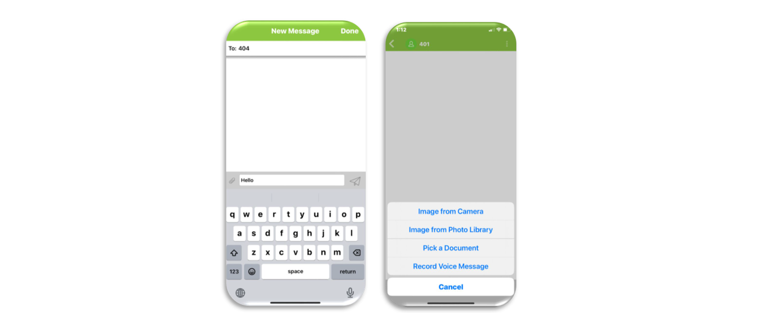
After composing messages or attaching files in the message field, tap the paper airplane icon to send.

Users can use the messaging feature to send instant messages, audio files, documents, or images (no video files) to other user extensions within your PBX environment, instead of calling them. Note that images, documents etc. cannot be sent to external phone numbers.
* Note: Short Message Service (SMS) texting to external (texting enabled) numbers, is available if this feature was purchased additionally and is activated by NEWT (MMS sends such as documents, video files, pictures etc... cannot be sent.
Related Articles
MS TEAMS Call Settings
Call Settings Options Instructions
Grandstream GDS3705 Door Phone
GDS3705 Door Phone Information Guide
Grandstream GBX20 Expansion Module
Quick Start Set up Guide
Grandstream GRP2624
Grandstream GRP2624 Quick Start Guide
Grandstream GRP2615
Grandstream GRP2615 Quick Start Guide
Grandstream GRP2613
Grandstream GRP2613 Quick Start Guide
Poly Rove 20
Rove 20 Handset Quick Start Guide