
Poly Rove 20
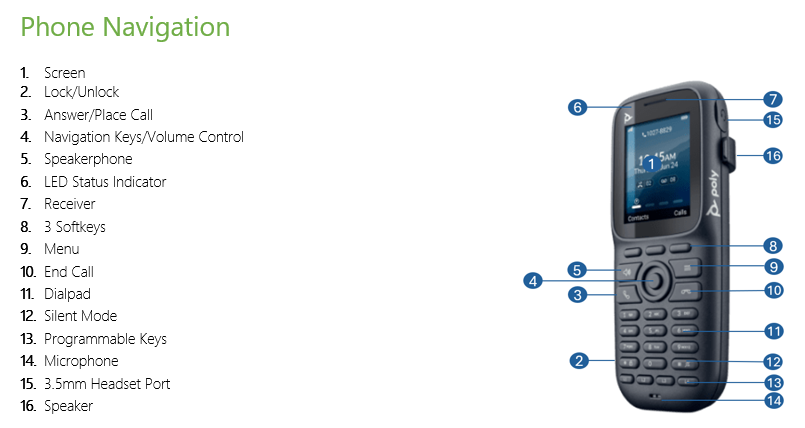
To turn on or off the phone, press and hold the End key until the handset powers on or off.
Placing Calls
Select the number to dial by doing one of the following:
Manually enter your contact’s number
Select a contact from a directory
Select a contact from the recent calls list
Select a message from the Messages list
Press the Call button
Answering Calls
Do one of the following:
Press the Call button
Press the Speakerphone
Select the Answer softkey button
Answer an Incoming Call During a Call
A tone plays when you receive an incoming call during an active call
Do one of the following:
Select Call
Press the Speakerphone button
The first call goes on hold automatically
Hold and Resume Calls
You can place up to two active calls on hold at any time
During a call, select Options > Hold
To Resume the call, select Options > Resume
Transferring Calls
Attend the transfer by first notifying the transfer recipient:
During a call, select Options > Transfer
Enter a number or select a contact from a directory or the recent calls list
Select Call
Talk with your contact, then select Options > Transfer again to complete the transfer
Blind transfer to another contact without your speaking to the contact first:
During a call, select Options > Blind Transfer
Enter a number or select a contact from a directory or the recent calls list
Select Transfer. The phone transfers the call when the contact answers the call
Voicemail
You can access and listen to new voicemail messages from the wireless handset
Go to Menu > Messages
Choose a line, then press Select. The wireless handset speed dials your voice mailbox number, and you can listen to new voicemail messages.
Or dial *98 to access the voicemail box and follow the prompts.
Note: For initial set up, your password will be your extension number. This must be changed to a different password to continue.
For more quick dial features please check our NEWT Phone Dial Codes Chart
Related Articles
NEWT Handset Training Videos
User Training Video's for Business Phones
Grandstream DP720 Mobile DECT Handset with 750 Base Station
DP720 with 750 Base Station User Guide
How to Update your MS Teams Call Settings
Call Settings Optional Instructions for Users
Grandstream GDS3705 Door Phone
GDS3705 Door Phone Information Guide
Grandstream GBX20 Expansion Module
Quick Start Set up Guide
Grandstream GRP2624
Grandstream GRP2624 Quick Start Guide
Grandstream GRP2615
Grandstream GRP2615 Quick Start Guide