
MS TEAMS Call Settings
Once a Teams user profile is aligned with a NEWT Business Phone extension number, they can use the Calls tab to make and receive calls. It supports calling between other Teams users within your organization, and offers additional 10-digit number based dialing.
Teams chat, audio and video calls between Teams users remain in the Microsoft environment and are not visible to the NEWT phone system.
Microsoft Teams does have its own minimal settings for users. However, it does not provide the same level of features that the NEWT PBX offers per extension for call flow or call handling. While it is recommended to utilize the NEWT PBX Configuration for all call flow and call handling feature set ups, there are some settings that can be handled within the MS Teams Call settings if preferred.
To navigate to Call Settings:
At the top of your MS Teams screen next to your profile picture, click on the ellipses(...)
Choose Settings from the resulting menu.
Choose Calls in the left panel from the resulting “Settings” menu.

Call Forwarding
Choose to forward all of your calls to an extension or a phone number or direct to your MS Voicemail by toggling on the "Forward all calls" button. Then:
Choose to forward to a new number or contact or
Choose to forward to voicemail*
Or
Choose to Forward under the following circumstances:
When you receive a call, choose from these options:
"Do not ring anyone else" or
"Also ring a new number or contact", then enter the new number.
When you can't answer a call, choose from these options:
"Do not redirect calls"
"Redirect to a new number or contact", then enter the new number.
"Redirect to Voicemail"*
* Caution: If you choose to forward to voicemail, you are now asking the system to use MS Teams voicemail feature, instead of NEWT’s voicemail feature. Since voicemails will no longer be in the NEWT PBX environment, NEWT’s voicemail retrieval features will no longer function. This setting should not be used if you prefer to have your voicemails stored within the NEWT PBX enviroment, or if you normally retrieve your voicemails by dialing *98 or externally accessing your voicemail box.
Ring Tones
The following settings can be applied:
Choose a Ringtone for you
Choose a ringtone for forwarded calls
Choose a ringtone for delegated calls
Manage Voicemail
If you prefer Voicemails to be housed within your MS Teams extension (not on the NEWT PBX), or you chose to redirect to Voicemail above, update the following settings:
Record a customized greeting
Choose what happens when the call is redirected to voicemail
When should your greeting play
Manage Call Groups
*NOT RECOMMENDED to MANAGE FROM MS TEAMS CALLING APP. Please refer to the NEWT PBX ADMIN Call Groups Instructions for set up.
Call Park
Call Parking can only be enabled by your MS365 Administrator during the integration process.
Administrators can access the Microsoft Teams and NEWT PBX Integration Guide by signing in to NEWTCF as your PBX administrator, and downloading the PDF from the Reports Tab.
The MS teams Call Park feature parks the call on the Microsoft platform and only another Teams client can pick it up. Hard phones on the other hand, use the NEWT PBX call park feature and have visibility on where the call is parked. Teams’ clients can park calls for non-MS teams extension users, using *5 code during call.
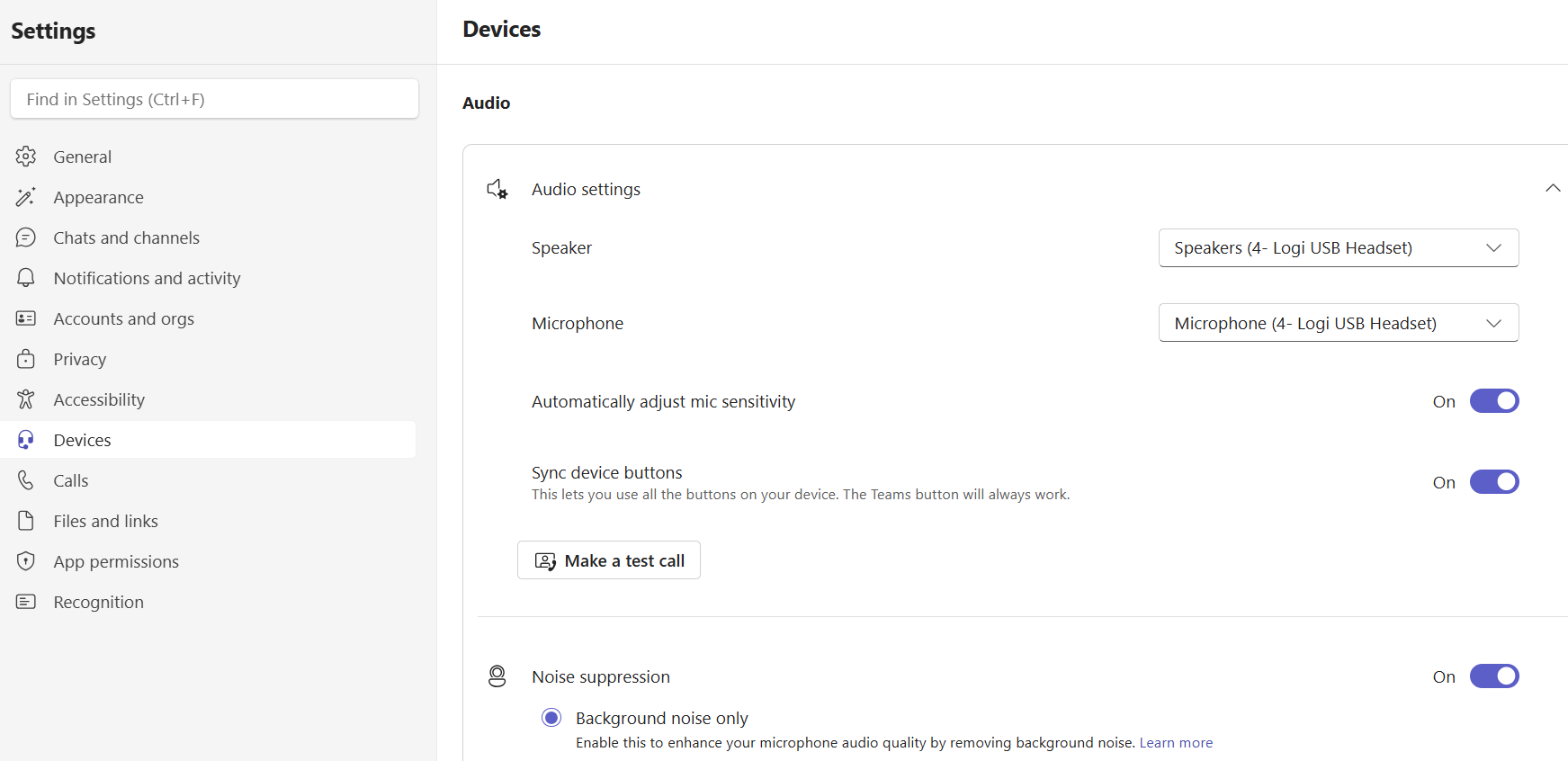
Microphone and Speakers
The Teams application is designed to use any microphone and speaker combination that’s compatible with your Windows or MacOS operating system, whether they may be integrated into a laptop design or be an added peripheral device such as an external headset. If there’s no microphone or speaker audio, then check your PC Mic and Speakers settings to ensure the proper devices are selected and that volume levels are appropriately set. A test call is recommended after changing audio device settings.
At the top of your MS Teams screen next to your profile picture, click on the ellipses(...)
Choose Settings from the resulting menu.
Choose Devices from the resulting Settings Side Panel.
For the User Guide to make and receive calls, please visit the MS TEAMS with NEWT quick start guide.