
NEWT ACD Live Reporting
The NEWT ACD (2.0) offers several real-time and historical reports which can potentially be accessed from anywhere with a browser. The reporting windows allow you to capture call activity from a summary viewpoint, right down to the details. Reports are segregated by tabs for easy viewing. You will be given access to Reporting by your NEWT provider or your PBX Administrator. The ACD Reports tab will then be seen by accessing NEWTCF with your credentials.
The features for Reporting include:
Call Details - with access to recordings
Call Insights – AI insights and transcripts on recorded calls. *Additional Purchase Required
Agent Activity Summary – with details
Queue Activity summary - with details
Hourly Activity
Unprocessed Calls
Agent Transfers
Workstate Status Details
Report Filtering and Downloadable
Summary View
Each type of report is separated into tabs for easy navigation:

Your Administrator may have set up a view for you by putting the queues you need access to, into a group. If this is the case, you’ll see the group name. You can use filtering to further drill down what you need to see. The information displayed will dynamically change as you update/change the filtering and select the refresh button. Examples:
If you want to pull a report for one queue but all agents, pick the queue you want from the queue drop-down menu and leave the Agent drop-down selection blank.
Pick your date range and then click on the View Report button.
Reports (based on the view you have filtered in on) can also be downloaded via csv file button.
The summary calculations seen are:
SLA % - the default Service Level Agreement (SLA) thresholds % is based on Number of calls answered within 20 sec. Calls not answered will go against the SLA.
Completed Calls – Total count of calls taken within the filtered range.
Abandoned Calls – Total count of calls not taken within the filtered range.
Total Talk – HR:MM:SEC of time spent on calls within the filtered range.
Average Talk – HR:MM:SEC average duration of time spent on calls within the filtered range.
Maximum Talk – HR:MM:SEC highest duration of time spent on a call within the filtered range.
Average Wait – HR:MM:SEC average duration of time customers have spent, waiting in queue for their call to be answered within the filtered range.
Maximum Wait - HR:MM:SEC highest duration of time customers have spent, waiting in queue for their call to be answered within the filtered range.
Avg. Abandoned Wait - HR:MM:SEC average duration of time customers have spent, waiting in queue for their call to be answered, before hanging up, within the filtered range.
Call Details Report (CDR)
The Call Details Report (CDR) compiles the data collected and processed by the ACD based on call activity. While the reporting reflects Inbound Call activity, Outbound Call activity can be retrieved uniquely by selecting the built in Outbound Queue.

Report Details:
· Time | · Duration of call |
· Date | · Source phone number |
· Queue Number | · Region |
· Queue Name | · Caller Name |
· Agent Ext | · DNID (the number they called in to) |
· Agent Name | · Disposition Type (if set up) |
· Wait time of call | · Disposition Text (if set up) |
Call Recording:
Call Recording would be turned on for each queue by your administrator if they choose to utilize this feature.
If you have not purchased the additional ACD Insights, you’ll notice a call recording play button at the end of each call listed. Easily listen to a call by clicking on the play button within the line item of the call (see below insights for call recording location if insights was purchased).
ACD Call Insights Summary
If you have purchased ACD Call Insights, you will notice an additional tab under Call Details called “Insights”, where call recording with transcripts and insights analysis can be retrieved.

Report Details:
Call Type – this is intelligently categorized based on the general theme or subject of the call. In the support queue for instance, you may see call types such as technical support or feature impairment whereas in a finance queue you may see billing or cancellation as the call type.
Short Description – Similar to a subject line of an email, this is a short description of the call generated by the AI after analysing the full call, using key words.
Outcome – The AI will make a determination of the final outcome of the call, after analysing the full call. You may see outcomes such as “resolved” or “resolved pending follow up” or “unresolved”. Unresolved calls will be highlighted in red, to help bring attention to the call for further action.
Client Sentiment – The AI will capture the tone of the call as well as words used, to determine the overall emotion, attitude and opinion of the customer. You may see results such as positive, grateful, satisfied, neutral, relieved, patient, resigned or frustrated. Frustrated calls will be highlighted in red, to help bring attention to the call for further action.
FCR – this stands for First Call Resolution and is listed as yes or no to simply analysis this Key Performance Indicator.
ACD Call Insight Details, Transcripts and Call Recordings
At the very end of the call line item, you can see a blue icon for individual call details. Clicking on this icon will bring up the full call details, more insights and a transcription produced by the AI along with the recorded call you can listen to.
You can see further details regarding the initial sentiment of the caller and their final sentiment as well as action steps the agent has taken for resolution.

Use the Seek button to show detailed transcriptions with time stamps.
If you want to listen to a specific area of the call, you can select the transcript sentence you want to go to. You’ll notice that the audio jumps to the time stamp of that sentence. Hit Play to listen from there. Additionally, transcripts can be downloaded to csv.
If insights or transcriptions have not been captured yet (sometimes more lengthy calls are left to be processed overnight) you can manually force the process by hitting the Generate Button manually.
As a quick reminder, we understand that AI is not always perfect. It tries its best, but that doesn’t mean you won’t find the occasional error in transcription or analysis.
Queue Summary Report
The Queue Summary is a convenient way to view and pull reports based on activity conducted per queue. It provides a statistical summary of queue activity and can be drilled down with filtering for key performance metrics within specified ranges.

Report Details:
· Date | · Max Wait times before being answered. |
· Queue Number | · Average Duration of length of calls |
· Queue Name | · Maximum Duration of length of calls |
· SLA % | · Total Duration of length of all calls |
· Queued # of calls. | · Maximum Wait times before being answered. |
· Abandoned # of calls. | · Average Duration of length of calls |
· Completed # of calls. | · Average time of agents in Wrap Up status |
· Average Wait times before being answered. | · Total time of agents in Wrap Up status |
Outbound Call Reports
If agents are completing outbound calls utilizing the Agent Console, the outbound calls will show up in one “Outbound Queue” for reporting purposes as seen here:

Please note that if you make outbound calls from your phone directly, rather than through the agent console, the outbound calls will not show up in the ACD monitor or reporting. It will be considered a “regular” outbound call and only show up in the PBX regular reporting.
Agent Summary Report
The Agent Summary Report provides a productivity breakdown of the time spent within the ACD for one or more Agent(s) to help monitor detailed Key performance indicators such as calls taken vs missed, avg time spent on calls etc. Using date filters, views and reports can be drilled down to single day results by agent.
This can help ensure Agent(s) are fulfilling their duties, help identifying training needs or plan for improvements.

Report Details:
Details are split into two sections – one being general stats that everyone will see, while Work State stats may differ depending on how your ACD work states have been programmed.
General | Work States |
· Agent Ext | · Logged In Time |
· Agent Name | · Wrapping Up Time |
· Calls – Count of calls answered | · Outbound Time |
· Avg Time to Answer | · Break Time |
· Missed Calls count | · Lunch |
· % of Missed Calls vs Answered | · Meetings |
· Avg Talk Time | · Tickets |
· Max Talk Time | · Coaching |
· Total Talk Time | |
· Occupancy % |
Hourly Breakdown Report
A great tool for Workforce Analysis, the Hourly Breakdown offers detailed analysis, based on call activity conducted per queue, in 30-minute increments.
Block colours will change, depending on thresholds set, to alert you to issues with service times.
Totals are also displayed, to easily view and pull for reporting purposes.

Unprocessed Calls Report
Abandoned calls can be seen at-a-glance with the ability to pull these for reporting.

Report Details:
· Date | · Starting Position (how many other callers were in line before them) |
· Time | · Ending Position (position when call was abandoned) |
· Reason - Agents logged off or caller abandoned | · Source (phone number of person calling in) |
· Queue Number | · Region |
· Queue Name | · Caller Name |
· Wait time in queue | · DNID (the number they called in to) |
Agent Transfer Reports
This report lists details for transfers that are made by agents handling ACD calls:

Report Details:
· Date | · Agent |
· Time | · Agent Name |
· Source | · Destination (Call transferred to xxx) |
· Caller Name | · Destination (Call transferred to [name]) |
· Queue No. | · Time to Transfer |
· Queue Name | · Disposition (reason for transfer) |
Status Details Report
This report allows you to pull data regarding your agents work state status and can be filtered by start/end dates and agents. Please note that you must be assigned to the same GROUP as your employees, to see their Status details.

Report Details:
The status name of the Work State depends on how your ACD has been programmed (unique work states).
· Agent | · End Time |
· Agent Name | · Status (work state) |
· Date | · Duration |
· Start Time |
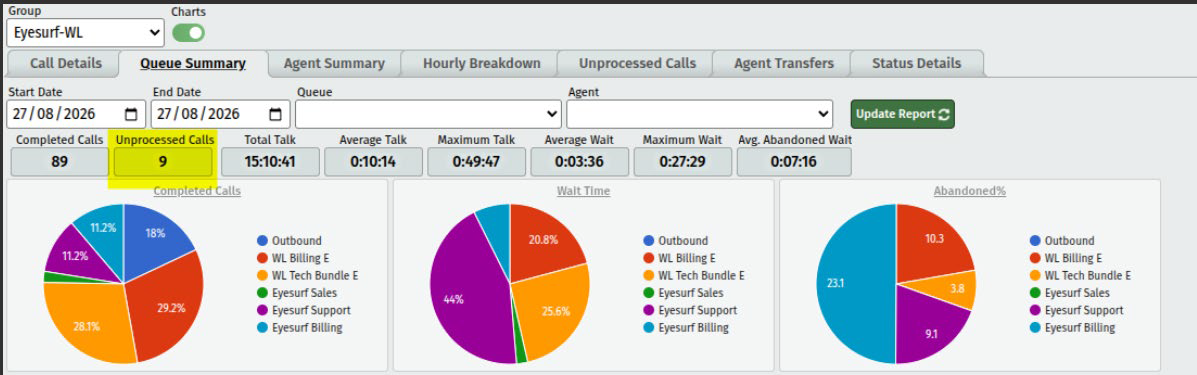
Data Visualization Charts
Summary Charts for visual analysis are available. Please contact NEWT to turn this visual on:
Related Articles
ACD ADMIN - Call Flow Set Up for QUEUES
Setting up your Call Flow for Queue Routing
NEWT ACD Call Insights
Call Insights and Transcripts
ADC Admin - Supervisor Access for Monitoring
How to give access to users for ACD Monitoring and Reporting
ACD Admin - Agent Console Access Set Up
Providing User Access to the ACD Agent Console
ACD Admin - TN Settings
Administering your NEWT PBX Automatic Call Distribution
ACD Admin - Work States Settings
Administering your NEWT PBX Automatic Call Distribution
ACD Admin - Dispositions Settings
Administering your NEWT PBX Automatic Call Distribution