
Jabra Evolve 65 Bluetooth Headset Setup
While NEWT does not sell and is therefore unable to support issues relating to functionality of headsets being used with the GXP2170, we hope this guide will be helpful for users.
This document provides step-by-step instructions for connecting the Jabra Evolve 65 Bluetooth Headset to a Grandstream GXP2170 IP Phone running:
Firmware Core: 1.0.11.45
Firmware Base: 1.0.11.46
Software Version: 1.0.11.64
Please ensure all required components are available before beginning.
Jabra Evolve 65 Bluetooth Headset
Charging Cable
USB-A Bluetooth Adapter (Dongle)
Steps
Charge the Headset
Plug in the USB-A Bluetooth adapter into the USB port on the back of the GXP2170
Reboot the Phone:
Remove the Ethernet cable from the LAN port, or unplug the power cable if the phone is powered by AC.
Wait 2-3 Minutes.
Reconnect the Ethernet or power cable.
Allow the phone to fully reboot.
Enable Bluetooth and Scan for Devices:
Press the Menu Button (after reboot)
Navigate to System->Bluetooth
Scroll down to find and select Start Scan
Power on your Jabra Evolve 65 headset
Press the round button on the headset as shown below
The MAC Address of the headset should be detected. Please make sure it is selected (yellowish) and press Pair.
Once the headset is paired with the phone, you will see "Pair requested from" on your GXP2170 screen.
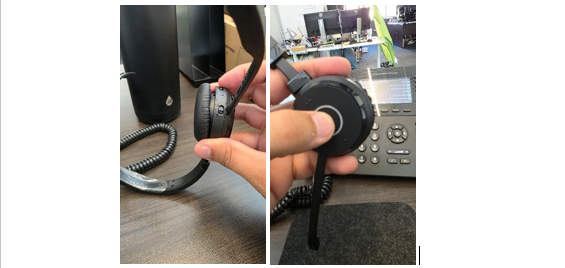
You can now start using your headset. When you press the circle button on your headset twice you will see the green light on the headset icon on your phone and a line should be selected to dial out.
Related Articles
GDS3705 Door Phone Set Up
Set up and Configuration Information
Client Router / Firewall Settings
Customer Network Guidelines for 3rd party Internet Access (ALT ACCESS)
Poly Voyager B5200 Bluetooth Headset Setup
How to connect your B5200 with your NEWT GXP2170
GXP2170 Headset Compatibility Information
Learn about recommended headsets for your NEWT GXP2170
NEWT Nitro FTTP - BYOD Option
Installation Information for FTTP - BYOD